
Logs Commands
Commands for retrieving and monitoring log files on B2C Commerce instances. These commands provide convenient access to instance logs without needing to manually navigate WebDAV.
Authentication
Logs commands need only your instance hostname. The first time, your browser opens so you can sign in with your Account Manager account. You can also use an access key or API client; see WebDAV Authentication.
b2c logs get
Get recent log entries from a B2C Commerce instance. This command is designed for one-shot log retrieval with filtering options, suitable for both human use and programmatic/agent access.
Usage
b2c logs getFlags
| Flag | Description | Default |
|---|---|---|
--filter, -f | Log prefixes to read (can specify multiple). Replaces the default rather than adding to it. Matches the start of the file name or of its category. Use a path like internal/server to fetch logs from a subdirectory. See Custom logger files. | error, customerror |
--count, -n | Maximum number of entries to retrieve | 20 |
--since | Only show entries after this time (e.g., "5m", "1h", "2d", or ISO 8601) | - |
--level | Filter by log level (can specify multiple): ERROR, WARN, INFO, DEBUG, FATAL, TRACE | - |
--search, -g | Filter entries containing this text (case-insensitive) | - |
--cartridge-path | Override cartridge path for path normalization | Auto-discovered |
--no-normalize | Disable automatic path normalization | false |
--no-color | Disable colored output | false |
--json | Output as JSON | false |
Examples
# Get recent logs (default: error and customerror, last 20 entries)
b2c logs get

# Get more entries
b2c logs get --count 50

# Get logs from specific types
b2c logs get --filter error --filter debug --filter warn

# Get entries from every custom logger file (custom-*.log)
b2c logs get --filter custom-

# Get logs from a subdirectory (e.g. internal/) using a path-like filter
b2c logs get --filter internal/server

# Filter by time - last 5 minutes
b2c logs get --since 5m

# Filter by time - last 2 hours
b2c logs get --since 2h

# Filter by time - specific timestamp
b2c logs get --since "2026-01-25T10:00:00"

# Filter by log level
b2c logs get --level ERROR --level FATAL

# Search for specific text
b2c logs get --search "OrderMgr"

# Combined filters with JSON output
b2c logs get --since 1h --level ERROR --search "PaymentProcessor" --json
Output
Human-readable output displays entries with colored log levels:
ERROR [2026-01-25 10:30:45.123 GMT] [customerror-blade0-1-appserver-20260125.log]
Error in OrderMgr.placeOrder at /app_storefront/cartridge/scripts/checkout.js:42

WARN [2026-01-25 10:29:12.456 GMT] [error-blade0-1-appserver-20260125.log]
Slow query detected in product search
JSON output (--json) returns:
{
  "count": 2,
  "entries": [
    {
      "file": "customerror-blade0-1-appserver-20260125.log",
      "level": "ERROR",
      "timestamp": "2026-01-25 10:30:45.123 GMT",
      "message": "Error in OrderMgr.placeOrder at ./cartridges/app_storefront/cartridge/scripts/checkout.js:42",
      "raw": "[2026-01-25 10:30:45.123 GMT] ERROR ... (full raw line)"
    }
  ]
}
Path Normalization
By default, file paths in log messages are converted from server paths to local paths for IDE click-to-open functionality. The command auto-discovers your local cartridge directory structure.
Use --no-normalize to disable this feature, or --cartridge-path to specify a custom cartridge location.
b2c logs list
List log files available on a B2C Commerce instance.
Usage
b2c logs listFlags
| Flag | Description | Default |
|---|---|---|
--filter, -f | Filter by log prefix (can specify multiple). Matches the start of the file name or of its category. Use a path like internal/server to list logs in a subdirectory. | All logs |
--sort | Sort field: name, date, size | date |
--order, -o | Sort order: asc, desc | desc |
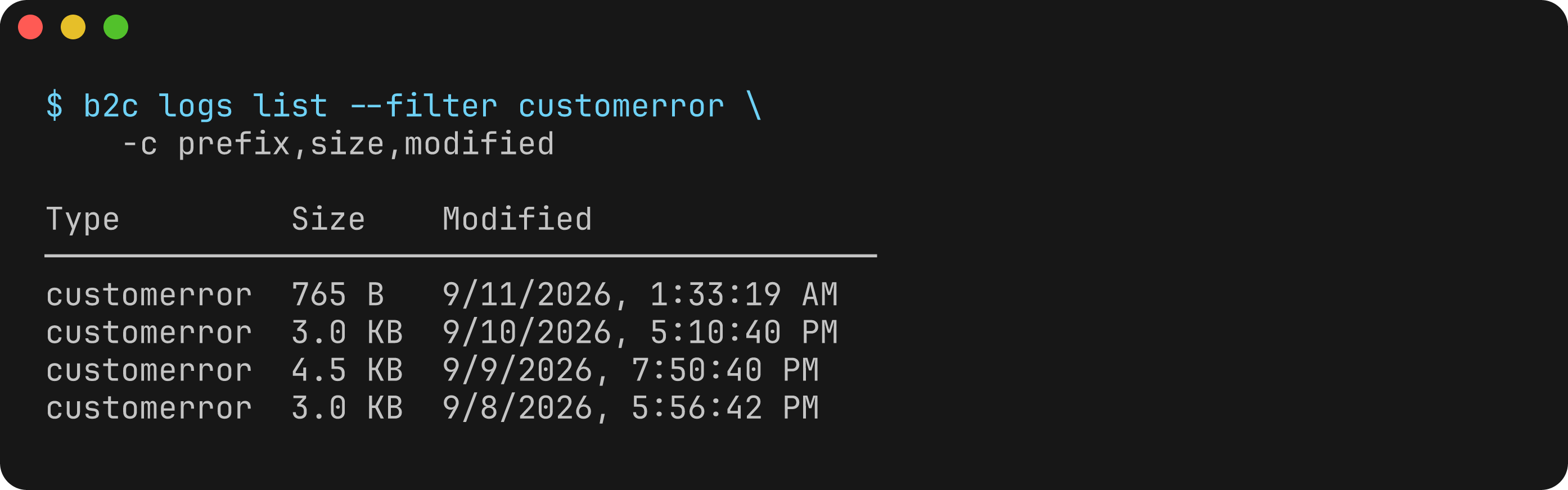
--columns, -c | Columns to display (comma-separated). Available: name, prefix, size, modified | - |
--extended, -x | Show all columns including extended fields | false |
--json | Output as JSON | false |
Examples
# List all log files
b2c logs list

# List only error logs
b2c logs list --filter error --filter customerror

# List logs in the internal/ subdirectory (path-like filter)
b2c logs list --filter internal/server

# Sort by size
b2c logs list --sort size --order desc

# JSON output
b2c logs list --json
Output
Name                                          Type         Size      Modified
────────────────────────────────────────────────────────────────────────────────
error-blade0-1-appserver-20260125.log        error        245.2 KB  1/25/2026, 10:30 AM
customerror-blade0-1-appserver-20260125.log  customerror  128.5 KB  1/25/2026, 10:28 AM
debug-blade0-1-appserver-20260125.log        debug        1.2 MB    1/25/2026, 10:25 AM
b2c logs tail
Tail log files in real-time. This is an interactive command that continuously monitors logs until stopped with Ctrl+C.
Usage
b2c logs tailFlags
| Flag | Description | Default |
|---|---|---|
--filter, -f | Log prefixes to tail (can specify multiple). Replaces the default rather than adding to it. Matches the start of the file name or of its category. Use a path like internal/server to tail logs in a subdirectory. | error, customerror |
--interval | Polling interval in milliseconds | 3000 |
--last, -l | Show last N entries per file on startup (0 to skip) | 1 |
--level | Filter by log level (can specify multiple): ERROR, WARN, INFO, DEBUG, FATAL, TRACE | - |
--search, -g | Filter entries containing this text (case-insensitive) | - |
--cartridge-path | Override cartridge path for path normalization | Auto-discovered |
--no-normalize | Disable automatic path normalization | false |
--no-color | Disable colored output | false |
--json | Output as NDJSON (newline-delimited JSON) | false |
Examples
# Tail error and customerror logs (default)
b2c logs tail

# Tail specific log types
b2c logs tail --filter debug --filter error --filter warn

# Tail a log in the internal/ subdirectory (path-like filter)
b2c logs tail --filter internal/server

# Faster polling (1 second)
b2c logs tail --interval 1000

# Start without showing historical entries
b2c logs tail --last 0

# Show last 5 entries per file on startup
b2c logs tail --last 5

# Tail only ERROR and FATAL entries
b2c logs tail --level ERROR --level FATAL

# Tail with text search
b2c logs tail --search "PaymentProcessor"

# Combined filtering
b2c logs tail --filter customerror --level ERROR --search "OrderMgr"

# NDJSON output for streaming parsers
b2c logs tail --json
Notes
- This is an interactive command that runs until interrupted with Ctrl+C
- The command discovers and monitors all matching log files, including newly created files during rotation
- JSON mode outputs NDJSON (one JSON object per line) suitable for streaming parsers
- For non-interactive log retrieval, use
b2c logs getinstead
Log File Types
B2C Commerce instances generate various log files:
Custom Logs (Script-Generated)
| Type | Generated By | Default State |
|---|---|---|
customdebug | Logger.debug() | Disabled |
custominfo | Logger.info() | Disabled |
customwarn | Logger.warn() | Always enabled |
customerror | Logger.error() | Always enabled |
customfatal | log.fatal() | Always enabled |
Custom Logger Files
Scripts that log through a named logger, such as Logger.getLogger('PaymentProcessor', 'payment'), write to their own custom-<name>-<host>-appserver-<date>.log file. That file is separate from customerror, and logs get and logs tail don't read it by default. When logs get finds no entries, it lists the custom-* logs that exist on the instance.
A file's category is the text before the host name. For custom logger files it ends at the second dash, so custom-MyIntegration-CustomApi-<host>-…log has the category custom-MyIntegration. --filter matches the start of either the category or the file name:
# Every custom logger file
b2c logs get --filter custom-

# One logger, including names that contain a dash
b2c logs get --filter custom-PaymentProcessor
b2c logs get --filter custom-MyIntegration-CustomApi
System Logs
| Type | Description |
|---|---|
error | System errors in scripts, templates, platform |
warn | Lock status, slot warnings, servlet warnings |
info | System information |
debug | Debug information (when enabled) |
fatal | Critical system failures |
api | API problems and violations |
deprecation | Usage of deprecated APIs |
jobs | Job status information |
quota | Quota warnings and limit violations |
Downloading Full Log Files
To download the complete log file for deeper investigation, use b2c webdav get with the filename from the log entry (shown in brackets in human output, or the file field in JSON output):
b2c webdav get error-odspod-0-appserver-20260126.log --root=logs -o -See WebDAV Commands for more details on log file access.
See Also
- WebDAV Commands - Direct file access for downloading full log files
- Configuration - Setting up instance credentials