
Content Commands
Commands for working with Page Designer content libraries and metadefinitions.
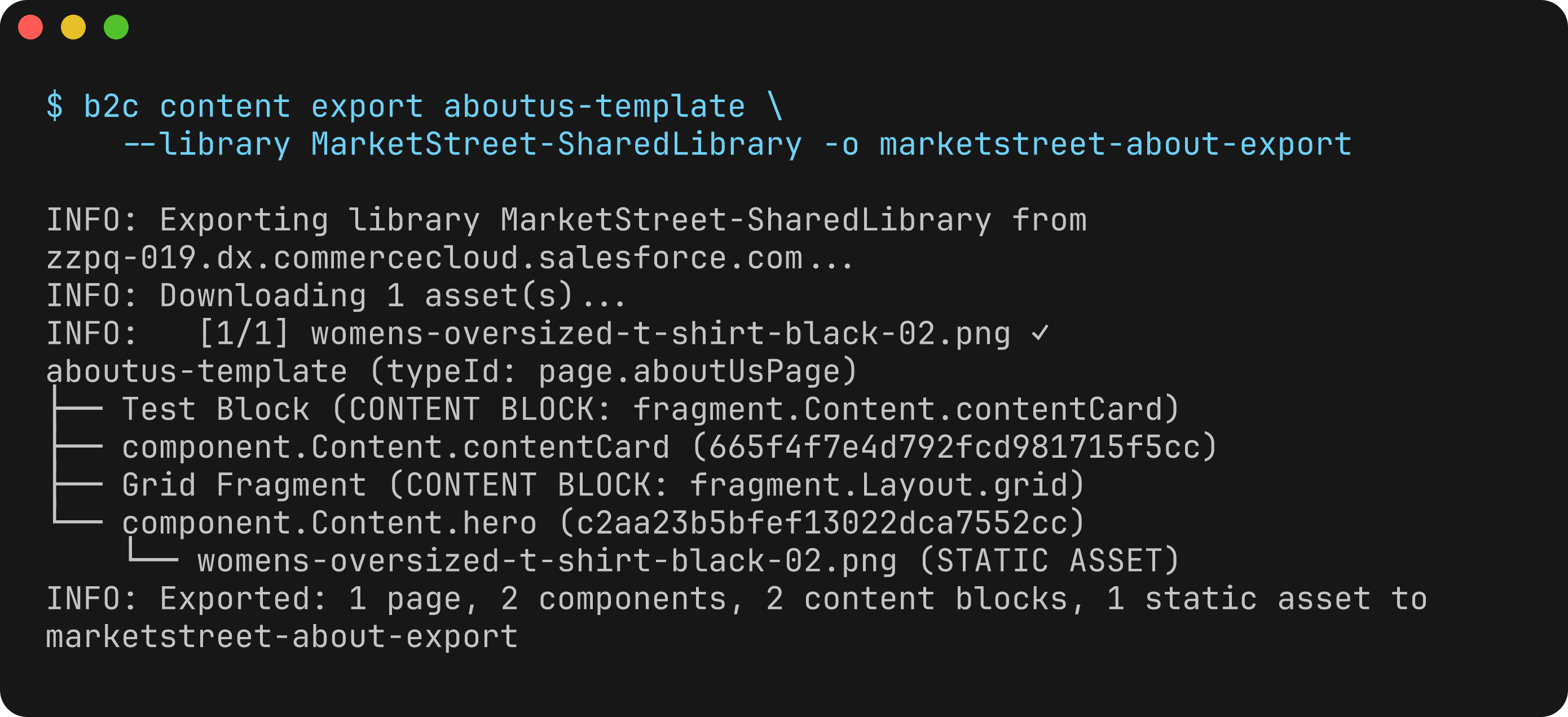
Export a page from your instance with its nested components, reusable content blocks, and images.
Authentication
The content export and content list commands require OAuth authentication:
| Operation | Auth Required |
|---|---|
content export | OAuth for the export job and WebDAV access for the archive and assets |
content list | OAuth for the export job and WebDAV access for the archive |
content validate | None (local file validation) |
Online exports and listings use SCAPI when configured, requiring sfcc.jobs.rw and the tenant scope. --api-backend ocapi selects OCAPI explicitly; the default auto mode supports OCAPI fallback. See Job Authentication for setup.
export SFCC_CLIENT_ID=your-client-id
export SFCC_CLIENT_SECRET=your-client-secret
The content export and content list commands also support a --library-file flag for offline use with a local XML file, which skips authentication entirely.
For complete setup instructions, see the Authentication Guide.
b2c content export
Export Page Designer pages with their component trees and static assets from a content library.
The command fetches the library XML from the instance (via a site archive export job), parses the page/component tree structure, filters by the specified page IDs, downloads referenced static assets via WebDAV, and writes the result to a local directory as a re-importable site archive.
Usage
b2c content export [PAGES...] --library <library-id>Arguments
| Argument | Description | Required |
|---|---|---|
PAGES | One or more content IDs to export (pages, content assets, components, or content blocks) | Yes |
Flags
In addition to global flags:
| Flag | Description | Default |
|---|---|---|
--library | Library ID or site ID. Also configurable via content-library in dw.json. | |
--output, -o | Output directory | content-<timestamp> |
--site-library / --no-site-library | Treat the library as a site-private library. Defaults from a matching libraries config entry, otherwise false | from config |
--asset-query, -q | JSON dot-paths for static asset extraction (can be repeated) | image.path |
--regex, -r | Treat page IDs as regular expressions | false |
--folder | Filter by folder classification (can be repeated) | |
--offline | Skip asset downloads | false |
--library-file | Use a local library XML file instead of fetching from instance | |
--keep-orphans | Include orphan components (not linked to any page) in export | false |
--show-tree | Display tree structure of exported content | true |
--timeout | Export job timeout in seconds | |
--dry-run | Preview export without downloading assets or writing files | false |
Examples
# Export a single page from a shared library
b2c content export homepage --library SharedLibrary --server my-sandbox.demandware.net

# Export multiple pages
b2c content export homepage about-us contact --library SharedLibrary

# Export pages matching a regex pattern
b2c content export "hero-.*" "promo-.*" --library SharedLibrary --regex

# Export a specific component by ID
b2c content export hero-banner --library SharedLibrary

# Export from a site-private library
b2c content export homepage --library RefArch --site-library -o ./export

# Preview what would be exported without downloading
b2c content export homepage --library SharedLibrary --dry-run

# Export with JSON output
b2c content export homepage --library SharedLibrary --json

# Export from a local XML file (no instance connection needed)
b2c content export homepage --library SharedLibrary --library-file ./library.xml --offline

# Filter by folder classification
b2c content export homepage --library SharedLibrary --folder seasonal --folder holiday

# Custom asset extraction paths
b2c content export homepage --library SharedLibrary -q "image.path" -q "video.url"

# Using environment variables and dw.json config
export SFCC_SERVER=my-sandbox.demandware.net
export SFCC_CLIENT_ID=your-client-id
export SFCC_CLIENT_SECRET=your-client-secret
b2c content export homepage

# With a libraries config entry (see below) marking the site library as
# site-private, --site-library is inferred automatically:
b2c content export homepage --library SiteGenesis
Configuring multiple libraries
Listing libraries under b2c.libraries in package.json (or libraries in dw.json) lets the CLI pick a default library and infer --site-library per entry. Bare strings are shared libraries; {id, siteLibrary: true} marks a site-private library. Both forms can be mixed:
{
  "b2c": {
    "libraries": [
      "RefArchSharedLibrary",
      { "id": "SiteGenesis", "siteLibrary": true }
    ]
  }
}
With this config:
# Uses RefArchSharedLibrary (first entry) as the default library
b2c content export hero-banner

# --site-library is inferred from the matching entry
b2c content export homepage --library SiteGenesis

# Explicit flag still overrides the config
b2c content export homepage --library SiteGenesis --no-site-library
Output
The command displays:
- A tree visualization of the exported content (pages, components, content blocks, and assets)
- Asset download progress with success/failure indicators
- A summary line listing counts by type, e.g.:
Exported: 2 pages, 1 content asset, 5 components, 1 content block, 3 static assets to ./export
With --json, returns a structured result including the library tree, output path, downloaded/failed asset lists, and counts.
Notes
- The
--libraryflag can be set indw.jsonascontent-libraryor inpackage.jsonunderb2c.contentLibraryto avoid passing it every time. You can also list libraries underb2c.libraries(mixed strings or{id, siteLibrary?}objects); when the resolved library matches an entry markedsiteLibrary: true,--site-librarydefaults to true automatically. The CLI flag still wins when passed explicitly - Use
b2c content listto discover available page IDs before exporting - You can export pages, content assets, individual components, or content blocks by their content ID. When a component or content-block ID is specified, it is promoted to the root of the export with its full child tree
- Content blocks are Page Designer "content blocks" — reusable
fragment.*-typed content shared across pages. They are listed distinctly in the tree as(CONTENT BLOCK)and counted separately in the summary. A content block can be exported by its ID just like a component; a Layout content block retains its region children - The
--asset-queryflag specifies JSON dot-notation paths within component data to extract static asset references. The defaultimage.pathcovers the common Page Designer image component pattern - Use
*in asset query paths to traverse arrays (e.g.,slides.*.image.path)
b2c content list
List pages and content items in a content library. Useful for discovering page IDs before running an export.
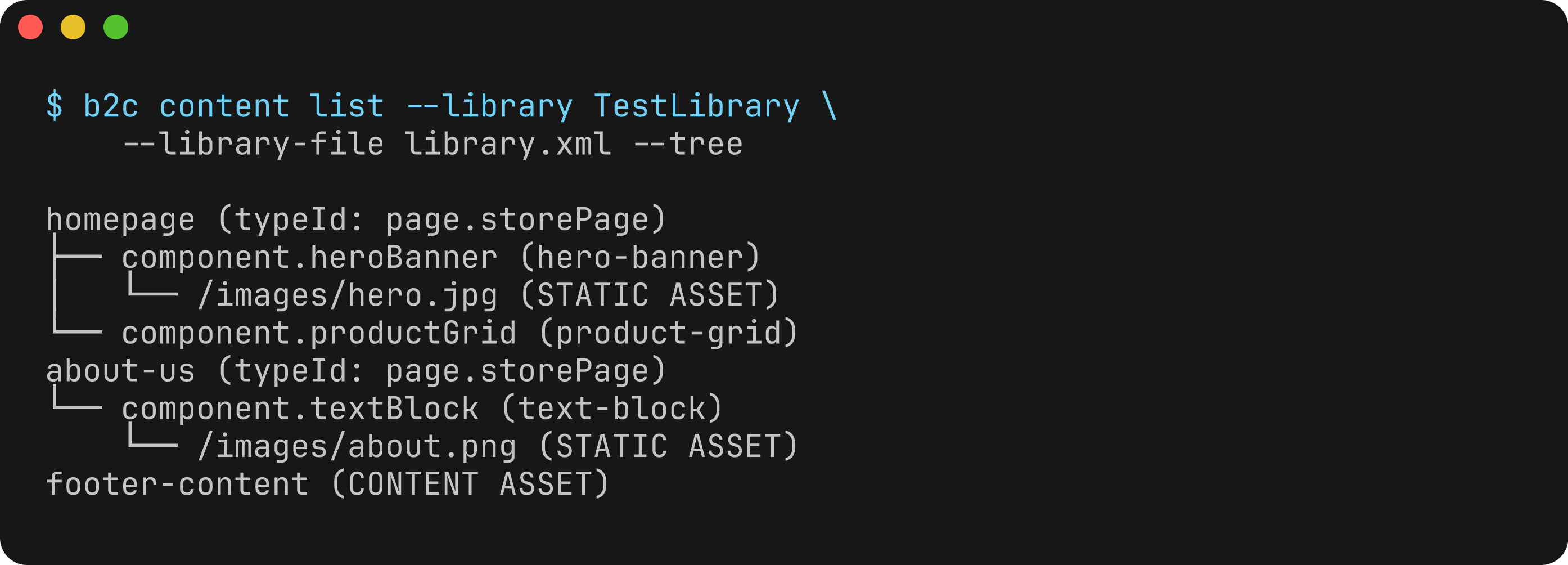
Inspect the same page and component structure from an instance or a local library XML file.
Usage
b2c content list --library <library-id>Flags
In addition to global flags:
| Flag | Description | Default |
|---|---|---|
--library | Library ID or site ID. Also configurable via content-library in dw.json. | |
--site-library / --no-site-library | Treat the library as a site-private library. Defaults from a matching libraries config entry, otherwise false | from config |
--library-file | Use a local library XML file instead of fetching from instance | |
--type | Filter by node type: page, content, component, or fragment (content blocks) | |
--components | Include components in table output | false |
--tree | Show tree structure instead of table | false |
--timeout | Job timeout in seconds | |
--columns, -c | Columns to display (comma-separated). Available: id, type, typeId, children | All columns |
--extended, -x | Show all columns including extended fields | false |
Examples
# List all content in a library
b2c content list --library SharedLibrary --server my-sandbox.demandware.net

# List only pages
b2c content list --library SharedLibrary --type page

# List only content blocks (the deduplicated catalog, including unlinked blocks)
b2c content list --library SharedLibrary --type fragment

# List including components
b2c content list --library SharedLibrary --components

# Show tree structure
b2c content list --library SharedLibrary --tree

# List from a site-private library
b2c content list --library RefArch --site-library

# With a libraries config entry marking the site library as site-private,
# --site-library is inferred automatically (see "b2c content export"
# above for an example b2c.libraries config):
b2c content list --library SiteGenesis

# List from a local XML file
b2c content list --library SharedLibrary --library-file ./library.xml

# JSON output
b2c content list --library SharedLibrary --json
Output
Default table output:
ID               TYPE        TYPE ID            CHILDREN
homepage         PAGE        page.storePage     5
about-us         PAGE        page.storePage     3
footer           CONTENT                        2
With --components, components are included in the table output alongside pages and content items.
With --tree, displays a hierarchical tree visualization:
homepage (typeId: page.storePage)
├── component.heroBanner (hero-banner)
│   └── /images/hero.jpg (STATIC ASSET)
└── component.productGrid (product-grid)
about-us (typeId: page.storePage)
└── component.textBlock (text-block)
    └── /images/about.png (STATIC ASSET)
footer-content (CONTENT ASSET)
Pages show id (typeId: type), components show typeId (id), content blocks show displayName (CONTENT BLOCK: typeId), content assets show id (CONTENT ASSET), and static assets show path (STATIC ASSET). The tree uses color when output to a terminal: page names are bold, component type IDs are cyan, content-block names are magenta, asset paths are green, and tree connectors are dim.
Content blocks (
fragment.*-typed content) are reusable, shared singletons.--type fragmentlists the deduplicated catalog of all content blocks in the library (including blocks not currently linked to any page), since they are not root-level content items.
With --json, returns { data: [...] } with each item containing id, type, typeId, and children count.
b2c content validate
Validate Page Designer metadefinition JSON files against schemas. This is a local-only command — no instance connection or authentication is required.
The command auto-detects the schema type using file path conventions (experience/pages/ → pagetype, experience/components/ → componenttype) and falls back to inspecting the JSON properties. You can also specify the type explicitly with --type.
Usage
b2c content validate <files...>Arguments
| Argument | Description | Required |
|---|---|---|
files | One or more file paths, directories, or glob patterns | Yes |
When a directory is passed, all *.json files within it are validated recursively.
Flags
In addition to global flags:
| Flag | Description | Default |
|---|---|---|
--type, -t | Schema type to validate against (skips auto-detection) | Auto-detected |
Available schema types: pagetype, componenttype, aspecttype, cmsrecord, customeditortype, contentassetpageconfig, contentassetcomponentconfig, contentassetstructuredcontentdata, image.
Examples
# Validate a single page type definition
b2c content validate cartridge/experience/pages/storePage.json

# Validate all metadefinitions in a directory recursively
b2c content validate cartridge/experience/

# Validate with a glob pattern
b2c content validate 'cartridge/experience/**/*.json'

# Explicitly specify the schema type
b2c content validate --type componenttype mycomponent.json

# Validate multiple files
b2c content validate pages/home.json pages/about.json components/hero.json

# JSON output for CI/scripting
b2c content validate cartridge/experience/ --json
Output
The command prints a color-coded result for each file:
PASS: experience/pages/storePage.json (pagetype)
PASS: experience/components/hero.json (componenttype)
FAIL: experience/components/broken.json (componenttype)
  ERROR at .attribute_definition_groups[0]: is required

2/3 file(s) valid, 1 error(s)
The command exits with a non-zero status when any file fails validation.
With --json, returns a structured result:
{
  "results": [
    {
      "valid": true,
      "schemaType": "pagetype",
      "errors": [],
      "filePath": "/path/to/storePage.json"
    }
  ],
  "totalFiles": 1,
  "validFiles": 1,
  "totalErrors": 0
}
Notes
- Auto-detection uses file path conventions first: files under
experience/pages/are validated aspagetype, files underexperience/components/ascomponenttype. For other schema types, use--type. - Schemas are bundled with the SDK and follow the Page Designer metadefinition specification.
- Use
b2c content validatein CI pipelines to catch metadefinition errors before deployment.