
Job Commands
Commands for executing and monitoring jobs on B2C Commerce instances.
API Backend
Job commands run over SCAPI (the operation/jobs API). Configure shortCode, tenantId, and the sfcc.jobs / sfcc.jobs.rw scopes on your API client and job run, job search, job wait, and job log work out of the box.
# Default — uses SCAPI
b2c job run my-job
Legacy OCAPI backend (deprecated)
OCAPI is deprecated and disabled on newer instances. The CLI defaults to --api-backend auto, which falls back to the OCAPI Data API on safe SCAPI capability/auth/request rejections. Force a backend if needed:
b2c job run my-job --api-backend scapi   # force SCAPI
b2c job run my-job --api-backend ocapi   # force the legacy OCAPI backend
Or set "api-backend": "scapi" in dw.json, or SFCC_API_BACKEND=scapi.
TIP
The job import and job export commands trigger the sfcc-site-archive-import/-export system jobs and transfer archive files over WebDAV. The job-execution trigger honors --api-backend: in auto mode it starts the system job over SCAPI (requires the sfcc.jobs.rw scope) and falls back to OCAPI only if the SCAPI start is rejected. WebDAV is always used for the archive transfer itself regardless of backend.
Authentication
SCAPI (recommended)
When using SCAPI, your API client needs the appropriate scopes in Account Manager:
| Scope | Operations |
|---|---|
sfcc.jobs.rw | Execute, delete, search, and get job executions (recommended) |
sfcc.jobs | Search and get job executions (read-only) |
You also need shortCode and tenantId configured (in dw.json or via flags).
OCAPI
Configure these resources in Business Manager under Administration > Site Development > Open Commerce API Settings:
| Resource | Methods | Commands |
|---|---|---|
/jobs/*/executions | POST | job run |
/jobs/*/executions/* | GET | job run --wait, job wait, job log |
/job_execution_search | POST | job search, job log |
WebDAV Access
The job import, job import-set, job export, and job log commands also require WebDAV access for file transfer and import history.
Configuration
# OAuth credentials
export SFCC_CLIENT_ID=your-client-id
export SFCC_CLIENT_SECRET=your-client-secret

# WebDAV (for import/export)
export SFCC_USERNAME=your-bm-username
export SFCC_PASSWORD=your-webdav-access-key
For complete setup instructions, see the Authentication Guide.
b2c job run
Execute a job on a B2C Commerce instance.
Usage
b2c job run JOBIDArguments
| Argument | Description | Required |
|---|---|---|
JOBID | Job ID to execute | Yes |
Flags
In addition to global flags:
| Flag | Description | Default |
|---|---|---|
--wait, -w | Wait for job to complete | false |
--timeout, -t | Timeout in seconds when waiting | No timeout |
--poll-interval | Polling interval in seconds when using --wait | 3 |
--param, -P | Job parameter in format "name=value" (repeatable) | |
--body, -B | Raw JSON request body (for system jobs with non-standard schemas) | |
--no-wait-running | Do not wait for running job to finish before starting | false |
--show-log | Show job log on failure | true |
Note: --param and --body are mutually exclusive.
Examples
# Execute a job
b2c job run my-custom-job

# Execute and wait for completion
b2c job run my-custom-job --wait

# Execute with timeout
b2c job run my-custom-job --wait --timeout 600

# Execute with parameters (standard jobs)
b2c job run my-custom-job -P "SiteScope={\"all_storefront_sites\":true}" -P OtherParam=value

# Output as JSON
b2c job run my-custom-job --wait --json
System Jobs with Custom Request Bodies
System jobs (sfcc-*, such as search indexing) do not accept the parameters array, so -P fails for them. Use --body with the job's own JSON document. The body is identical for SCAPI and OCAPI; site_scope is an array of site IDs:
# Rebuild the product search index for specific sites
b2c job run sfcc-search-index-product-full-update --wait --body '{"site_scope":["RefArch","SiteGenesis"]}'

# Rebuild the product search index for a single site
b2c job run sfcc-search-index-product-full-update --wait --body '{"site_scope":["RefArch"]}'
The same {"site_scope":[...]} body applies to sfcc-search-index-{product,content,active-data}-{full,incremental}-update. See the OCAPI SearchIndexUpdateConfiguration document.
A SCAPI 400 (invalid request body) is reported as-is and is not retried over OCAPI. When --api-backend auto falls back on an auth or capability rejection and OCAPI also fails, the error includes both messages.
Standard (system) job steps
B2C Commerce ships a catalog of standard job steps — built-in step type IDs (for example ImportCatalog, ExportCatalog, ImportInventoryLists) that you add to a job flow in Business Manager → Administration → Operations → Jobs, or reference by type ID in a jobs.xml flow inside a site-import archive. These are distinct from custom job steps, which you author yourself (see the b2c:b2c-custom-job-steps skill).
The full catalog — each step's purpose and its configuration parameters — is bundled with the CLI and searchable through the docs commands:
# Browse the standard step catalog
b2c docs read job-steps

# Look up a specific step's parameters
b2c docs read ImportCatalog
b2c docs search ExportInventoryLists
In-flow system step vs. the CLI equivalent
Some standard steps overlap with CLI commands. Use whichever fits the workflow:
- In-flow system step (for example the standard
ImportCatalogstep, or thesfcc-site-archive-importjob behindb2c job import): runs entirely on the instance, against a file already staged in IMPEX. Choose this when the file is produced by an earlier step in the same job flow (no round-trip to your machine), when operations should run on a Business Manager schedule, or when you want catalog/inventory imports to follow your custom processing without leaving the server. - CLI command (
b2c job import,b2c job export): drives the operation from your machine — uploading a local archive, downloading an export, or scripting a one-off from CI. Choose this for local-to-instance transfer, ad-hoc runs, and pipelines that originate outside the instance.
In short: keep it an in-flow standard step when the data already lives on (or is generated on) the instance and should stay there; reach for the CLI when you are moving data between your machine and the instance. For chaining custom and standard steps in one flow — and handing a custom-generated IMPEX file to a standard import step — see the b2c:b2c-custom-job-steps skill.
b2c job wait
Wait for a job execution to complete.
Usage
b2c job wait JOBID EXECUTIONIDArguments
| Argument | Description | Required |
|---|---|---|
JOBID | Job ID | Yes |
EXECUTIONID | Execution ID to wait for | Yes |
Flags
In addition to global flags:
| Flag | Description | Default |
|---|---|---|
--timeout, -t | Timeout in seconds | No timeout |
--poll-interval | Polling interval in seconds | 3 |
--show-log | Show job log on failure | true |
Examples
# Wait for a job execution
b2c job wait my-job abc123-def456

# Wait with timeout
b2c job wait my-job abc123-def456 --timeout 600

# Wait with custom polling interval
b2c job wait my-job abc123-def456 --poll-interval 5
b2c job search
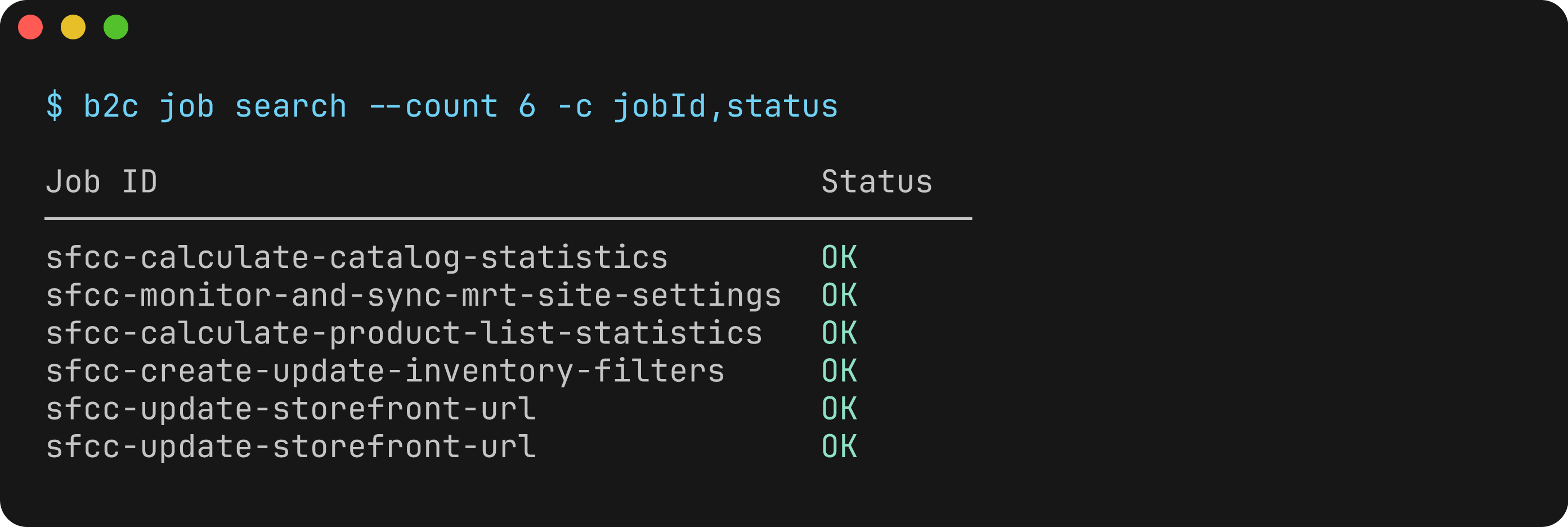
Search for job executions on a B2C Commerce instance.
Usage
b2c job searchFlags
In addition to global flags:
| Flag | Description | Default |
|---|---|---|
--job-id, -j | Filter by job ID | |
--status | Filter by status (comma-separated: RUNNING,PENDING,OK,ERROR) | |
--count, -n | Maximum number of results | 25 |
--start | Starting index for pagination | 0 |
--sort-by | Sort by field (start_time, end_time, job_id, status) | start_time |
--sort-order | Sort order (asc, desc) | desc |
--columns, -c | Columns to display (comma-separated): id, jobId, status, startTime | |
--extended, -x | Show all columns including extended fields | false |
Examples
# Search all recent job executions
b2c job search

# Search for a specific job
b2c job search --job-id my-custom-job

# Search for running or pending jobs
b2c job search --status RUNNING,PENDING

# Get more results
b2c job search --count 50

# Output as JSON
b2c job search --json
Output
The command displays a table of job executions with:
- Execution ID
- Job ID
- Status
- Start Time
b2c job log
Retrieve the log for a job execution. When no execution ID is provided, the command finds the most recent execution that has a log file.
Usage
b2c job log JOBID [EXECUTIONID]Arguments
| Argument | Description | Required |
|---|---|---|
JOBID | Job ID | Yes |
EXECUTIONID | Execution ID (if omitted, finds the most recent execution with a log) | No |
Flags
In addition to global flags:
| Flag | Description | Default |
|---|---|---|
--failed | Find the most recent failed execution with a log | false |
Examples
# Get the most recent log for a job
b2c job log my-custom-job

# Get the most recent failed log
b2c job log my-custom-job --failed

# Get the log for a specific execution
b2c job log my-custom-job abc123-def456

# Output as JSON (includes execution metadata and log content)
b2c job log my-custom-job --json

# Pipe log to a file
b2c job log my-custom-job > job.log
Notes
- Not all job executions produce log files. The command will skip executions without logs when searching.
- Log content is written to stdout, making it easy to pipe to a file or other tools.
- Status messages are written to stderr so they don't interfere with piped output.
- The
job logcommand requires WebDAV access to retrieve log files.
b2c job execution delete
Delete a job execution record. This command requires the SCAPI backend (sfcc.jobs.rw scope).
Usage
b2c job execution delete JOBID EXECUTIONIDArguments
| Argument | Description | Required |
|---|---|---|
JOBID | Job ID | Yes |
EXECUTIONID | Execution ID to delete | Yes |
Examples
# Delete a specific execution
b2c job execution delete my-job abc123-def456
Notes
- Requires SCAPI backend — not available via OCAPI.
- Requires the
sfcc.jobs.rwscope on your API client.
b2c job import
Import a site archive to a B2C Commerce instance using the sfcc-site-archive-import system job.
Usage
b2c job import TARGET [PATHS...]Arguments
| Argument | Description | Required |
|---|---|---|
TARGET | Directory, zip file, or remote filename to import | Yes |
PATHS... | Optional subset of files, directories, or glob patterns under TARGET to include in the archive. When omitted, the entire directory is archived. Only valid when TARGET is a directory. | No |
Flags
In addition to global flags:
| Flag | Description | Default |
|---|---|---|
--keep-archive, -k | Keep archive on instance after import | false |
--remote, -r | Target is a filename already on the instance (in Impex/src/instance/) | false |
--split, -s | Split a large directory import into multiple archive parts to stay under the instance size limit | false |
--max-size | Per-archive size limit for --split (e.g. 190, 190mb, 512kb; a bare number is MiB) | 190mb |
--timeout, -t | Timeout in seconds | No timeout |
--wait, -w | Wait for import job to complete | true |
--poll-interval | Polling interval in seconds when waiting for import and storefront setup jobs | 3 |
--wait-for-storefront | After a successful import, wait for the Storefront Next post-import setup job | false |
--show-log | Show job log on failure | true |
Examples
# Import from a local directory (will be zipped automatically)
b2c job import ./my-site-data

# Import from a zip file
b2c job import ./export.zip

# Keep archive on instance after import
b2c job import ./my-site-data --keep-archive

# Import from existing file on instance
b2c job import existing-archive.zip --remote

# With timeout
b2c job import ./my-site-data --timeout 300

# Import a composable storefront and wait for its post-import setup
b2c job import ./storefront-export.zip --wait-for-storefront

# Import only specific parts of a site export
b2c job import ./my-site-data sites/RefArch libraries/mylib

# Import all libraries using a glob pattern
b2c job import ./my-site-data 'libraries/**'

# Mix sites and libraries
b2c job import ./my-site-data sites/RefArch 'libraries/*'

# Split a large import that exceeds the instance archive size limit
b2c job import ./big-site-data --split

# Split with a custom per-archive size limit
b2c job import ./big-site-data --split --max-size 150mb
Notes
- When importing a directory, it will be automatically zipped before upload
- The archive is uploaded to
Impex/src/instance/on the instance - By default, the archive is deleted after successful import (use
--keep-archiveto retain) - When
PATHSare given, only those files/directories are included in the archive — their location underTARGETis preserved (e.g.sites/RefArch/...stays atsites/RefArch/...). --wait-for-storefrontfirst waits for a successful site archive import. It then allows up to 60 seconds for the automatically triggeredsfcc-post-import-setup-storefrontexecution to appear and waits for that execution to finish. It cannot be combined with--no-wait.- With
--json, ordinary imports retain their existing result shape. When--wait-for-storefrontis used, the result containsimportResultandstorefrontSetupExecutionso both executions can be inspected. - If no storefront setup execution appears within 60 seconds, the CLI checks available import logs and includes
[DATAERROR]entries in the timeout error. This diagnostic download happens only on discovery timeout; unavailable logs do not replace the original error.
Importing archives larger than the instance limit
A B2C Commerce instance rejects a single import archive above its size limit (typically 200 MB). The --split flag works around this for directory imports by importing the data in multiple smaller archive parts:
- Metadata/XML first. All order-sensitive XML (catalogs, libraries, sites,
meta, etc.) is imported first, kept together in a single archive when it fits. Keeping it together means the import job resolves all internal references and dependency ordering within one archive. If the XML alone exceeds the limit, it is split at top-level data-unit boundaries (e.g.catalogs,libraries,sites) in dependency order — never splitting an individual unit, so a catalog and its internal references always stay together. - Static assets after. Static resources (anything under a
static/folder — images, fonts, binaries) are deferred into subsequent archive parts, packed by compressed size. They are order-independent and attach to the catalogs/libraries created by the metadata import.
Parts are imported sequentially and the command stops on the first failure.
Packing is by estimated compressed size (already-compressed file types such as JPG/PNG/ZIP are measured as stored). The default per-part ceiling is 190mb to leave headroom under the instance limit; tune it with --max-size.
If a single file or a single data unit's XML is larger than --max-size on its own, it cannot be placed in any part (a file is never split across archives) and the command errors — reduce the export scope for that unit or raise --max-size if the instance allows a larger archive.
When you run a normal (non---split) directory import and the assembled archive exceeds the limit, the command warns and recommends re-running with --split. --split cannot be combined with --remote, subset PATHS, or --no-wait.
b2c job import-set
Apply a version-controlled sequence of site import/export archives and skip archives already applied to the target instance. See Import Sets for setup and workflow guidance.
Usage
b2c job import-set [DIRECTORY]Arguments
| Argument | Description | Required | Default |
|---|---|---|---|
DIRECTORY | Directory whose immediate child directories and zip files form the ordered import set | No | ./migrations |
Archives come from these import sources, in order:
metadata/directories in cartridges discovered from the current working directory or--project-directory.- Immediate child directories and
.zipfiles inDIRECTORY.
Cartridge metadata can be either one standard site import/export archive or an ordered collection of archives. Use one layout consistently within a cartridge. Cartridge sources are ordered by cartridge name, and archives within each source are ordered lexically. Hidden entries and other loose files are ignored. A directory-based archive must contain at least one file; empty directory trees are rejected before upload.
For example, the explicit import-set directory can contain:
migrations/
├── 20260801T140000-add-preferences/
│   ├── README.md                   # post-import note for this archive (see below)
│   ├── meta/
│   └── sites/
├── 20260802T091500-seed-content.zip
└── README.md                       # top-level README is not an archive
Name ordered child archives YYYYMMDDTHHmmss-description, using UTC so teams get consistent ordering. The default ./migrations directory may be absent when cartridge metadata supplies at least one archive.
Flags
In addition to global flags:
| Flag | Description | Default |
|---|---|---|
--set-id | Advanced: name for an independent import history | migrations |
--dry-run | Preview pending and applied archives without changing import history | false |
--keep-archive, -k | Keep each uploaded archive on the instance after import | false |
--[no-]cartridge-metadata | Include imports from discovered cartridge metadata/ directories | true |
--import-set-exclude | Exclude a project-relative directory recursively from source discovery | |
--break-lock | Recover an import set after confirming its previous runner has stopped | false |
--stale-lock-seconds | Consider an inactive import-set run stale after this many seconds | 1800 |
--lock-poll-interval | Seconds between checks while waiting for another import-set run | 3 |
--timeout, -t | Timeout in seconds for each import job | No timeout |
--poll-interval | Job polling interval in seconds | 3 |
--show-log | Show the job log when an import fails | true |
Examples
# Preview what would be imported
b2c job import-set --dry-run

# Apply ./migrations; repeat this command safely in local setup or CI
b2c job import-set

# Import only archives from ./migrations
b2c job import-set --no-cartridge-metadata

# Ignore fixture and integration-test source trees
b2c job import-set --import-set-exclude fixtures --import-set-exclude test/integration

# Recover after confirming the previous runner has stopped
b2c job import-set --break-lock

# Advanced: isolate a legacy migration history that cannot use unique timestamped names
b2c job import-set ./legacy-migrations --set-id legacy-storefront-data
--import-set-exclude can be repeated or provided as a comma-separated list. Paths are resolved from --project-directory or the current project directory. The same setting is available as import-set-exclude in dw.json, importSetExclude under the b2c key in package.json, and the comma-separated SFCC_IMPORT_SET_EXCLUDE environment variable.
Post-import notes
Some migrations require manual follow-up that cannot live in an archive — enabling an instance-specific site preference, wiring a service credential in Business Manager, or flipping a feature toggle after data lands. Document these steps in a README.md (or README) file at the top of that archive's directory.
After a run, the CLI prints the README contents of every archive it applied in a consolidated Post-import notes summary, so the operator sees what still needs doing and for which migration:
Import set complete: 1 imported, 3 skipped

Post-import notes:

  20260801T140000-add-preferences
    # Add feature-X preferences
Set the Feature X API endpoint in Business Manager (differs per environment).- Notes are shown only for archives applied in this run; archives already applied on the instance (skipped) do not repeat their notes.
--dry-runpreviews the notes for pending archives so you can review manual steps before importing.- Only directory-based archives are scanned;
.ziparchives are not.README.mdtakes precedence overREADME, and an empty README produces no note. The top-level README of the set directory is never printed. - With
--json, notes are not printed; each archive's note text is available in the JSON result.
Repeat runs
After an archive succeeds, later runs against the same instance skip it. An archive's name identifies it; changing its contents does not cause it to run again.
Never edit an applied archive. Add a new, later-sorting directory or zip file for every change so all instances converge on the same history.
An interrupted run can retry its current archive, so every archive must be safe to apply more than once. A failed run stops at the failing archive; fix the problem and rerun the command to continue.
The default history name is migrations and is shared by all runs against the target instance, regardless of checkout path. Most projects should omit --set-id; use it only when intentionally maintaining an independent history.
Resetting import history
There is no dedicated reset command. To preserve the existing history and start fresh, choose a new set ID and continue using it on later runs:
b2c job import-set --set-id migrations-reset-20260818To clear the default history in place, remove it through WebDAV and rerun the import set:
b2c webdav rm --root=impex b2c-cli/import-sets/migrations
b2c job import-set
For a custom set ID, replace the final migrations path segment with that ID. Clearing a history makes every current archive pending again. See Resetting Import History for guidance on choosing an approach.
Concurrent runs and recovery
Only one runner applies an import history at a time. Other runners wait and then skip archives completed while they were waiting.
An interrupted run becomes recoverable after 30 minutes by default; tune this with --stale-lock-seconds. Use --break-lock only after confirming the previous runner has stopped.
b2c job export
Export a site archive from a B2C Commerce instance using the sfcc-site-archive-export system job.
Usage
b2c job exportFlags
In addition to global flags:
| Flag | Description | Default |
|---|---|---|
--output, -o | Output path for the export | ./export |
--data-units | Data units JSON configuration | |
--site | Site ID(s) to export (comma-separated, repeatable) | |
--storefront | Composable storefront name to export | |
--site-data | Site data types to export (comma-separated) | |
--global-data | Global data types to export (comma-separated) | |
--catalog | Catalog ID(s) to export (comma-separated) | |
--price-book | Pricebook ID(s) to export (comma-separated) | |
--library | Library ID(s) to export (comma-separated) | |
--inventory-list | Inventory list ID(s) to export (comma-separated) | |
--keep-archive, -k | Keep archive on instance after download | false |
--no-download | Do not download archive (implies --keep-archive) | false |
--zip-only | Save as zip file without extracting | false |
--timeout, -t | Timeout in seconds | No timeout |
--show-log | Show job log on failure | true |
Examples
# Export global metadata
b2c job export --global-data meta_data

# Export a site's content and preferences
b2c job export --site RefArch --site-data content,site_preferences

# Export one composable storefront by storefront name
b2c job export --storefront my-storefront

# Export catalogs
b2c job export --catalog storefront-catalog

# Export with custom data units JSON
b2c job export --data-units '{"global_data":{"meta_data":true}}'

# Export to a specific directory
b2c job export --output ./exports

# Keep archive on instance
b2c job export --global-data meta_data --keep-archive

# Output as JSON
b2c job export --global-data meta_data --json
Data Units
The export is configured using "data units" which specify what data to export. You can use convenience flags (--site, --global-data, etc.) or provide a full JSON configuration with --data-units.
A composable storefront is selected by its storefront name and is serialized as {"storefronts":{"my-storefront":true}}. B2C Commerce supports one storefront per export operation.
The storefronts export data unit requires B2C Commerce 26.10 or later. If an export containing storefront data fails, the CLI includes this version requirement alongside the original error.
Site Data Types
When using --site-data, available types include:
all- Export all site datacontent- Content assets and slotssite_preferences- Site preferencescampaigns_and_promotions- Marketing campaignscustomer_groups- Customer groupspayment_methods- Payment configurations- And more (see OCAPI documentation)
Global Data Types
When using --global-data, available types include:
all- Export all global datameta_data- System and custom object metadatacustom_types- Custom object type definitionspreferences- Global preferenceslocales- Locale configurationsservices- Service configurations- And more (see OCAPI documentation)